
Every security baseline in Intune has worked the same way. You pick a baseline, assign it, and Intune pushes settings to the device.
The STIG audit baseline does the opposite. It pushes nothing. It reads the device and tells you whether it meets the STIG.
That sounds like a small difference. It isn’t. This is the first “baseline” in Intune that reports the actual state of a device against a hardening standard, instead of reporting whether a policy was delivered.
What a STIG is
STIG stands for Security Technical Implementation Guide. The Defense Information Systems Agency (DISA) publishes them for the US Department of Defense (DoD).
A STIG describes how a product must be configured to reduce vulnerabilities. There are STIGs for operating systems, browsers, network equipment and applications. Federal agencies and DoD contractors must follow them and prove that their devices comply.
Every rule in a STIG has a severity category. CAT I is high, CAT II is medium, CAT III is low. A CAT I finding is the one an auditor stops at.
DISA also publishes STIGs in a machine readable form, as SCAP benchmarks. SCAP is the Security Content Automation Protocol. Scan results are expressed in XCCDF, the Extensible Configuration Checklist Description Format from NIST. That is the format auditors expect to receive.
DISA typically updates STIGs every quarter.
What the STIG audit baseline is
The STIG audit baseline evaluates Windows devices against the Microsoft Windows 11 STIG SCAP Benchmark. The first version in Intune is Version 2, Release 7, with a benchmark date of January 5, 2026. It contains 197 rules.
The rules and their expected values come from DISA’s published SCAP benchmark files. Intune doesn’t define them, and you can’t change them.
What you get back is a report per rule and per device. It can be exported to CSV or pulled through Microsoft Graph, and every status maps directly to an XCCDF result.
One thing doesn’t add up yet. Microsoft lists 197 rules. In Rudy Ooms’ lab, more on his research below, the tenant showed 216 settings in the device logs. There’s no confirmed explanation for the difference.
You can assign it to Windows 10 and Windows 11. Rules that don’t apply to a device’s OS version report as Not applicable.
Availability
Microsoft released the baseline in June 2026 for GCC High tenants only. The documentation still says that.
That is no longer the full picture. As of late October 2026 the baseline is also available in commercial tenants. I have it running in my lab tenant.
The baseline requires Advanced Analytics. Microsoft is rolling Advanced Analytics into Microsoft 365 E3 and E5 for commercial tenants, so many organizations already have it or will get it without buying it separately.
Why audit only matters
A normal security baseline reports delivery. Succeeded means Intune delivered the setting and the device accepted it. It doesn’t evaluate the device against a standard.
The audit baseline reports the value on the device. Microsoft makes the same distinction in its own comparison: configuration baselines report delivery of policy, the STIG audit baseline reports an on device value assessment.
Because nothing is pushed, nothing can conflict. You can assign the audit next to your existing security baselines, Settings Catalog profiles and compliance policies without any risk to the device.
That also means it fixes nothing. A Fail stays a Fail until you change the configuration with another policy.
Prerequisites
Licensing. Advanced Analytics, on top of Intune Plan 1 or Plan 2.
Platform. Windows 11.
Enrollment. Devices must be enrolled in Intune. The audit is delivered through the device configuration pipeline, so on comanaged devices the Device configuration workload slider must be set to Pilot Intune or Intune. If Configuration Manager owns that workload, the audit never arrives.
Roles. The admin needs:
- Organization: Read
- Security baselines: Assign, Create, Delete, Read, Update
The built in Endpoint Security Manager role has all of these. You also need scope tag permissions for the device groups you want to audit.
Create the profile
There is nothing to configure. The profile always audits every rule in the benchmark. You can’t select a subset, and there are no separate profiles per severity.
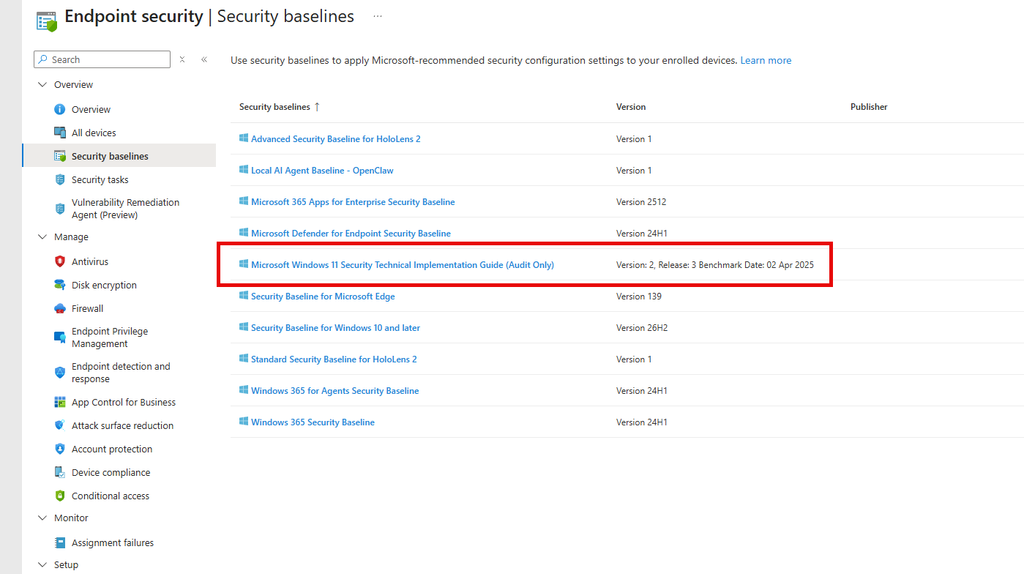
Go To Intune | Endpoint security| Security baselines
Click on Microsoft Windows 11 Security Technical Implementation Guide (Audit Only)
Click on + Create Police, Create
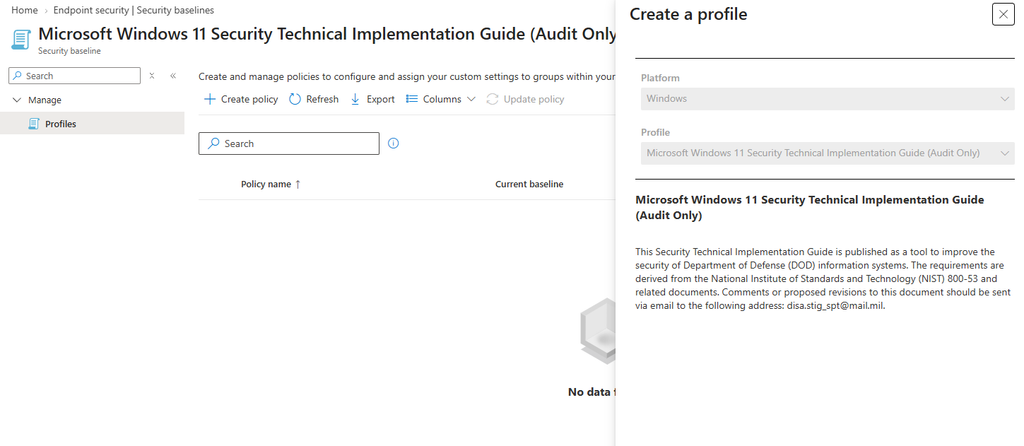
Give it a Name and Description and click Next
On the Configuration settings page there is nothing to fill just this message
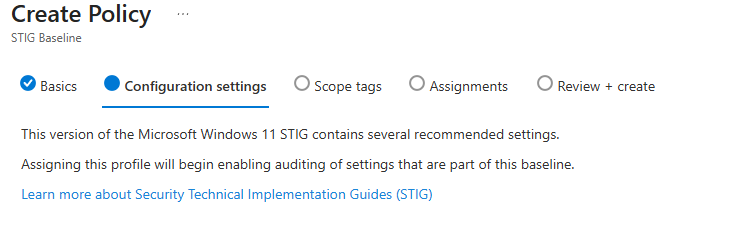
Set Scope tag and Assignment and click Create
How it works
Microsoft’s documentation stops at “the device evaluates the rules and reports at check in”. It doesn’t explain what actually runs on the device.
My good friend Rudy Ooms took the client side apart. He traced every step from the moment you click Create until the results show up in the report. The flow below is based on his research. For the full deep dive with logs and traces, read his post: Intune STIG Audit: What Happens After You Click Create.
The short version: the STIG audit isn’t a classic MDM policy. It runs on the same Device Inventory Agent that collects data for the properties catalog.
1. The device is woken up. After assignment, a WNS push notification tells the device to start a management session. The notification itself carries nothing. It only triggers the check in.
2. Windows Declared Configuration delivers the audit. During that session, Intune sends two documents through Windows Declared Configuration (WinDC), under ./Device/Vendor/MSFT/DeclaredConfiguration/Host/. One contains the audit definition. The other is an inventory document that lists which results Intune wants back. WinDC processes them asynchronously, so a document being accepted doesn’t mean the checks have run.
3. The Device Inventory Agent takes over. The InventoryAdaptor parses the settings from the audit definition and hands them to the inventory service.
4. The harvester evaluates locally. A policy change triggers the harvester to collect the actual values. It reads them from the registry and WMI, exports the local security policy with secedit /export, and reads the advanced audit policy with auditpol /get /category:*. Output from one command is reused across all rules that need it, so it doesn’t run once per rule.
5. Results are stored on the device. The evaluated results are kept under HKLMSOFTWAREMicrosoftDeviceInventoryReports.
6. Intune collects the results. In a later management session, Intune requests the inventory results document. This is a different path than the normal hardware and app inventory upload.
7. The report fills. After processing in the service, the results appear in the audit report.
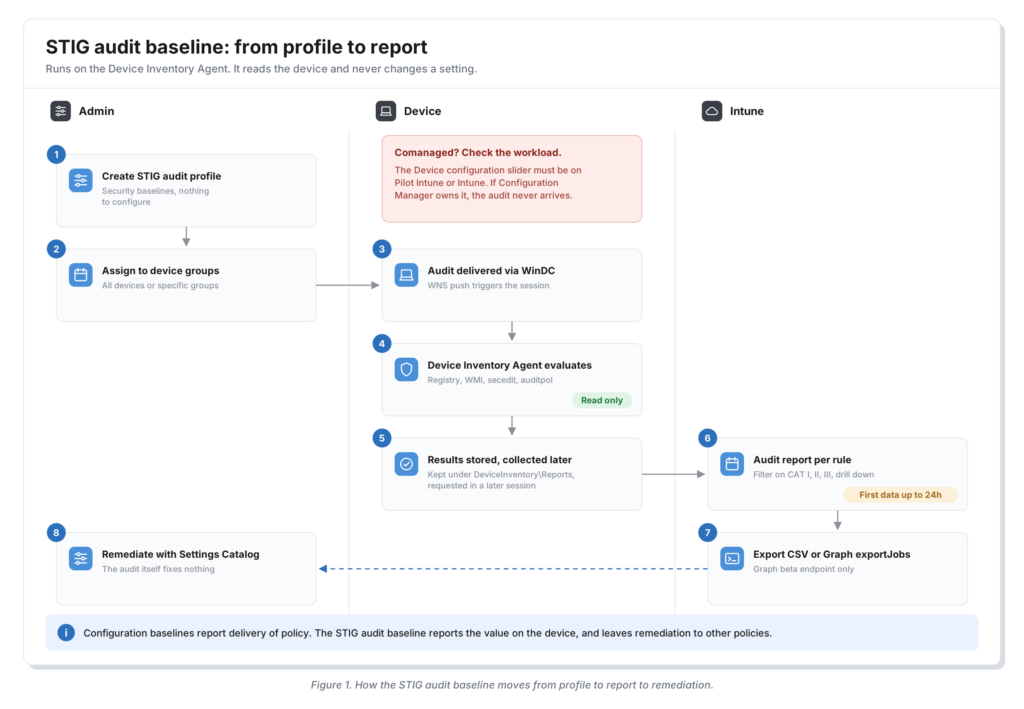
Figure 1. How the STIG audit baseline moves from profile to report to remediation.
Because evaluation and collection run in separate management sessions, the report always lags behind the device. Microsoft allows up to 24 hours for first results. In Rudy’s lab, the report was still empty six hours after creating the profile and filled by the next morning.
An empty report in those first hours doesn’t mean the audit failed on the device.
Sync reads the results already cached on the device. In Rudy’s trace it didn’t rerun secedit or auditpol. It gets you the latest stored results sooner, not a fresh evaluation.
Generate again only refreshes the report with data Intune already has. Clicking it repeatedly doesn’t make devices evaluate or report faster.
Reading the results
Open the profile under Endpoint security > Security baselines > Microsoft Windows 11 STIG SCAP Benchmark. The first time, you might need to select Generate before data appears.
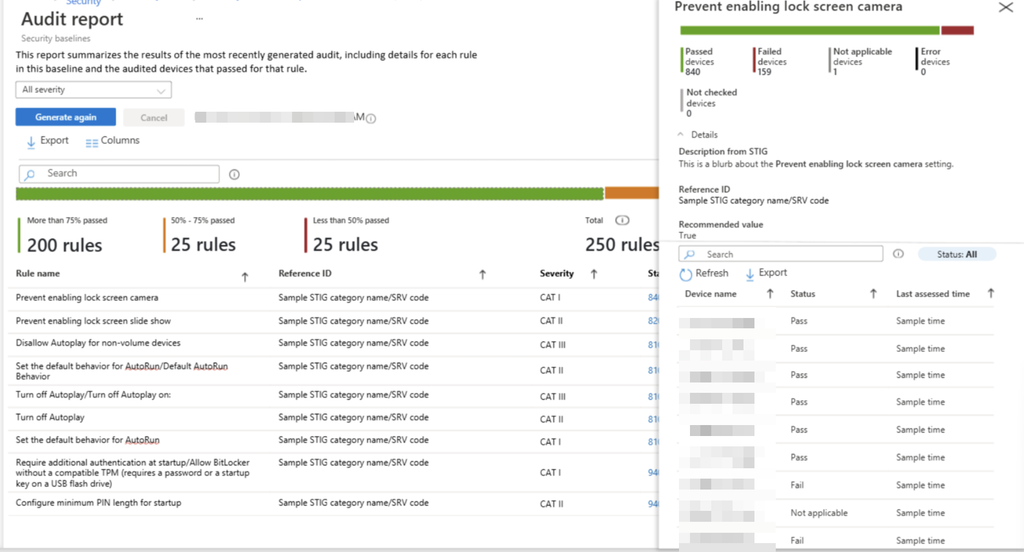
Device assignment status shows which devices received the profile, including devices still pending. Use it to confirm the audit actually landed before you read anything into the results.
Audit report shows one row per STIG rule, with the setting name, the STIG reference ID, the severity and the number of devices that passed. Filter on severity to start with CAT I. Select a device count to drill down to the individual devices for that rule.
Every device gets one of these statuses per rule:
| Intune status | Meaning | XCCDF result |
|---|---|---|
| Unknown | No result reported yet | unknown |
| Not applicable | Rule doesn’t apply to this device | notapplicable |
| Pass | Device meets the rule | pass |
| Fail | Device doesn’t meet the rule | fail |
| Error | Evaluation failed on the device | error |
| Conflict | A conflicting policy was detected | conflict |
The XCCDF mapping is what makes this usable for formal reporting. You don’t have to translate Intune statuses into auditor language yourself.
One thing the report doesn’t give you is the actual value on the device. You see Fail, not what the setting currently is. You still need to look at the device or the applied policy to find out why.
Rules that need a human
21 rules in the benchmark can’t be evaluated automatically. They need physical inspection, a judgment call, or a condition the device’s configuration service providers can’t detect. The audit report leaves them out.
Examples are UEFI mode instead of legacy BIOS, SNMP not being installed, permissions on the Application, Security and System event logs, and only authorized accounts having administrator rights.
A clean audit report is therefore not a clean STIG. Keep a separate, documented process for these rules.
Troubleshooting
Because the audit runs through the Device Inventory Agent, the usual MDM troubleshooting only gets you halfway.
Start with Device assignment status on the profile. If the device isn’t there, nothing on the device side matters yet.
On the device, check the DeviceManagement Enterprise Diagnostics Provider event logs for the WinDC delivery. Then move to the Device Inventory Agent logs in C:\Program Files\Microsoft Device Inventory Agent\Logs. InventoryAdaptor.log shows whether the audit definition was handed over. IntuneInventoryHarvesterLog shows the actual collection and evaluation.
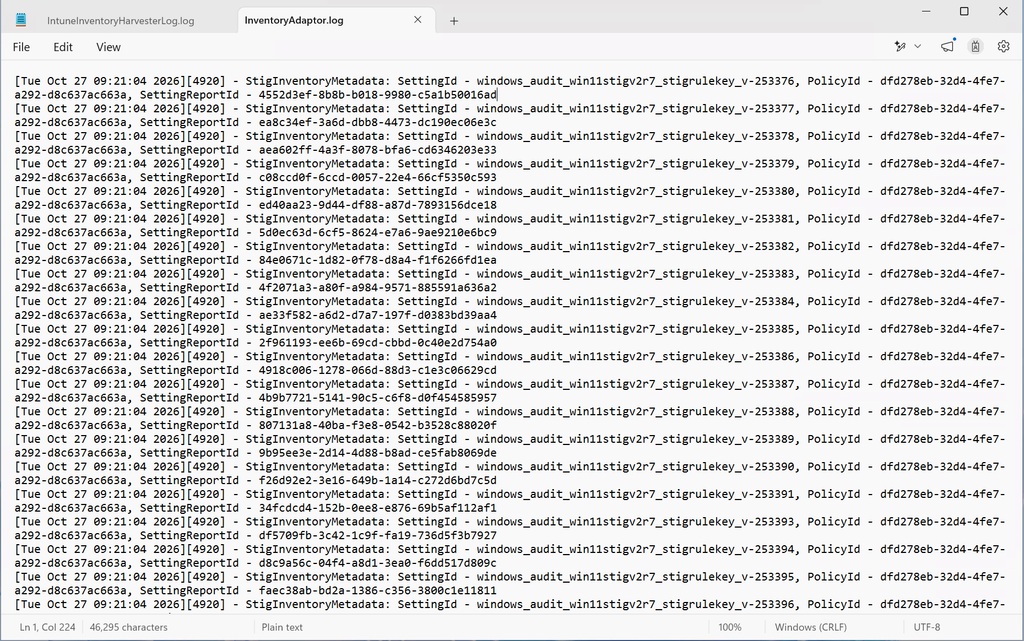
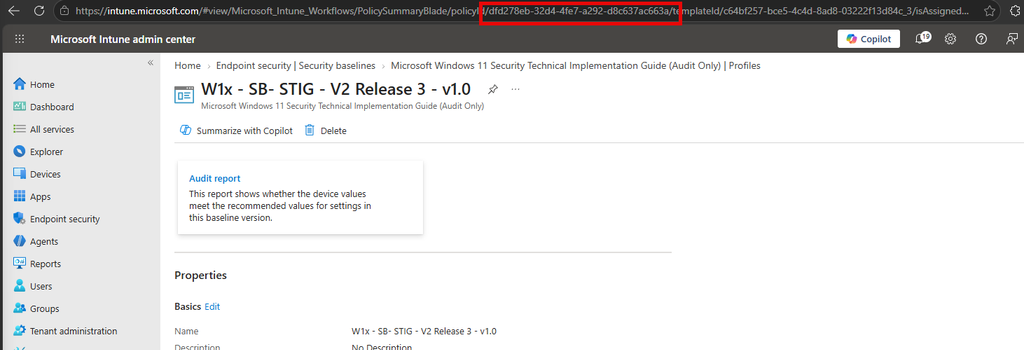
Two traps are worth knowing. The policy ID changes when you recreate a profile, so make sure you’re looking at the right one. And older cached results from an earlier evaluation can still be on the device.
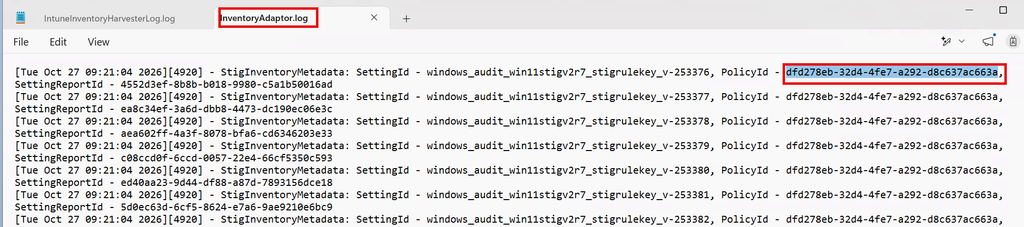
In the report, Validation Failure on the device side covers both real failed checks and evaluation or parsing errors. Don’t treat every failure as a configuration gap until you’ve checked which one it is.
Limitations
- Audit only. It never fixes a setting. Remediation is a separate policy, preferably Settings Catalog.
- No customization. All rules are audited. You can’t upload your own STIG profile or exclude rules.
- No device values. The report shows pass or fail, not the current value.
- Latest version only. New profiles always use the latest supported benchmark. Existing profiles on an older version keep running.
- Portal only. Profiles can’t be created through the API.
- Not real time. Expect a delay of hours, and up to 24 hours for first results.
- Manual rules excluded. 21 rules are outside the report and need their own process.
My two cents: an audit mode for every baseline
This last part is my own opinion. It isn’t on any roadmap I can point to.
The STIG baseline shows that Intune can evaluate a device against a full standard without touching it. I would like to see that same audit mode on every security baseline.
Before you enforce. Assigning the Windows security baseline today means finding out what breaks after it’s applied. With an audit mode you assign it first, see exactly which devices and which settings would change, deal with the exceptions, and only then enforce. That fits perfectly with ring based rollouts and the new deployment plans.
After you enforce. Succeeded tells you a policy landed. An audit next to it tells you the value is still what it should be, months later, on every device.
When you onboard a tenant. For an MSP, the first question at a new customer is where their devices stand. An audit against the Windows baseline, Defender and Microsoft 365 Apps would give a measured starting point before anything is changed, and a clear before and after once the work is done.
When a new baseline version ships. Every new Windows baseline version, like 25H2 to 26H2, means reviewing changed defaults. Auditing the new version against the fleet first would show the impact in numbers instead of in a diff.
For the standards European customers get asked about. The STIG is a US DoD standard. The same engine with other benchmarks would make Intune a real audit tool for frameworks like CIS, NIS2 and NEN 7510, not just a configuration tool.
The STIG audit baseline is a strong first step. I hope it’s the start of a pattern.