
Sooner or later someone asks the question. A customer, an auditor, a cyber insurer. Are your devices CIS compliant?
Until now, answering that from Intune meant building the CIS settings yourself, deploying them, and then trusting that Succeeded in the profile report meant the device was configured as intended. It doesn’t. Succeeded means the policy was delivered.
Intune can now audit Windows 11 devices against the CIS benchmark directly. It’s in public preview, and it runs on the same machinery as the STIG audit baseline I wrote about earlier: it reads the device, it changes nothing. If you haven’t read that post, the full client side flow and the reasoning behind audit only baselines are in STIG audit baseline in Intune: auditing what is actually on the device.
This post takes a different angle. A STIG is a mandate. CIS is a guideline. That difference changes how you read the results.
- What CIS is
- How a benchmark is made
- Profiles: Level 1, Level 2 and BitLocker
- Automated and manual recommendations
- The Intune benchmark is not the Windows 11 benchmark
- What the CIS audit baseline does
- Why the combined profile changes how you read results
- How it works on the device
- Prerequisites
- Creating the profile
- Reading the results
- Exporting
- CIS and STIG audit side by side
- Limitations
- Where this leaves you
What CIS is
The Center for Internet Security is an independent nonprofit. It publishes two things that people tend to mix up.
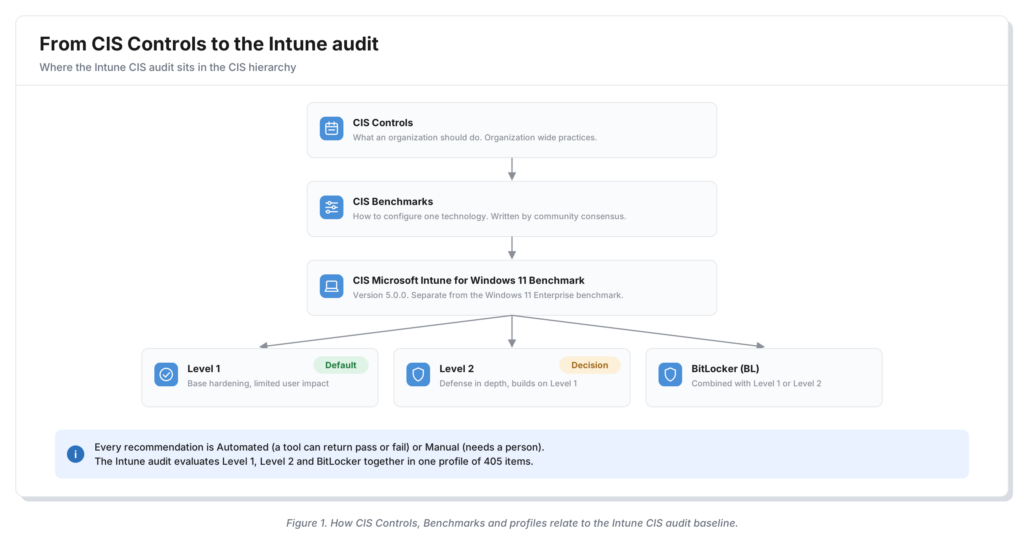
The CIS Controls. A prioritized set of security practices for an organization as a whole. Asset inventory, secure configuration, logging, access control. They describe what an organization should do. The current release is v8.1.
The CIS Benchmarks. Configuration guides for one specific technology. Windows 11, Windows Server, Microsoft 365, Edge, and more than a hundred others. They describe how to configure that technology securely.
The two connect. Secure configuration is one of the Controls, and a Benchmark is how you implement that Control on a specific platform. The Intune audit only deals with Benchmarks.
How a benchmark is made
CIS Benchmarks are written by consensus. Volunteers, vendors, community members and CIS staff discuss and test drafts on CIS WorkBench until the community agrees. Then the version is published.
That is the core difference with a STIG. A STIG is written by DISA for the US Department of Defense, and federal agencies and contractors must follow it. A CIS Benchmark is written by a community and nobody is forced to follow it. Organizations adopt it because it’s a recognized, vendor neutral reference point.
The PDFs are free to download. Machine readable formats and the CIS assessment tooling are for CIS SecureSuite members.
Profiles: Level 1, Level 2 and BitLocker
Every recommendation in a benchmark belongs to at least one profile.
Level 1 is the base. Settings you can implement fairly quickly, with limited impact on how people work. The goal is a smaller attack surface on a device that is still usable.
Level 2 is defense in depth. It builds on Level 1 and is not a standalone profile. It’s meant for environments where security outweighs convenience, and CIS states plainly that it can break things if you apply it without care.
BitLocker (BL) is a separate profile for the BitLocker and DMA protection related recommendations. You combine it with Level 1 or Level 2.
The profile you choose is a decision about risk. Level 1 is the default. Level 2 is a choice you make per device population, after testing.
Automated and manual recommendations
Each recommendation also has an assessment status.
Automated means a tool can evaluate the device and return a pass or fail.
Manual means it can’t. It needs local knowledge or a person to look at it.
CIS is explicit that manual recommendations matter just as much as automated ones. An audit tool that only runs automated checks gives you part of the picture, never all of it. Keep that in mind when you read the Intune numbers.
The Intune benchmark is not the Windows 11 benchmark
CIS publishes several benchmarks for Windows 11. The Enterprise benchmark and the Standalone benchmark are written for Group Policy managed devices.
The CIS Microsoft Intune for Windows 11 Benchmark is a separate document, written for devices managed by Intune. That’s the one Intune audits against. The preview uses version 5.0.0.
This matters when you compare results. If your security team works from the Windows 11 Enterprise benchmark, their numbering and their list of recommendations won’t line up with what Intune reports.
What the CIS audit baseline does
The baseline is called CIS Microsoft Intune for Windows 11 Benchmark (Audit Only). You find it under Endpoint security, Security baselines, next to the configuration baselines.
Microsoft documents 404 settings. In my lab tenant the profile shows 405 items. Either way it’s one profile that combines Level 1, Level 2 and the BitLocker checks.
The export from my tenant splits them like this:
| Profile | Items |
|---|---|
| Level 1 (L1) | 296 |
| Level 2 (L2) | 80 |
| BitLocker (BL) | 29 |
| Total | 405 |
Three quarters of the audit is Level 1. That’s the part most organizations should pass.
You can’t pick a level. You can’t select individual settings. You can’t change the expected values. The profile is the benchmark, as CIS published it.
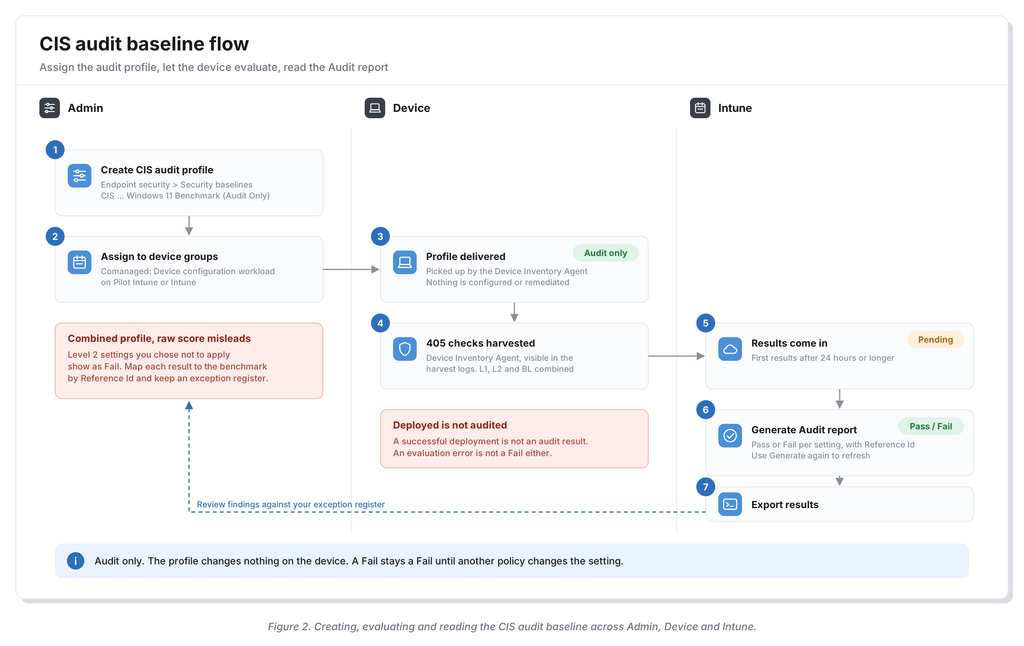
Assigning it configures nothing and fixes nothing. A Fail stays a Fail until another policy changes the setting.
Why the combined profile changes how you read results
This is where CIS and STIG differ most in practice.
With a STIG, every rule is a requirement. A Fail is a finding, and you either fix it or document why not.
With CIS, the common approach is different. Organizations run Level 1 on their standard workplace and pick Level 2 settings where they fit. Because the Intune profile audits Level 1 and Level 2 together, a device that is exactly where you want it to be will still show failures. Those are the Level 2 recommendations you decided not to apply.
So a raw pass percentage tells you very little. A device at 80 percent can be perfectly configured for a Level 1 organization. A device at 95 percent can still miss a Level 1 setting that matters.
What you need is the decision behind each failure:
- Level 1 fail. This is a gap, unless you have a documented reason.
- Level 2 fail, applied by design. This is a gap.
- Level 2 fail, not applied by design. This is an accepted exception, not a finding.
The report helps here. Every row has a Reference Id that is the CIS recommendation number with a prefix, like bl-4.11.7.1.1. And there’s a column called Severity that shows the profile the recommendation belongs to: L1, L2 or BL.
The column name is a bit misleading. CIS has no severity categories like the CAT I to CAT III of a STIG. What Intune shows in that column is the CIS profile, not a risk rating. The export makes the origin clear: the columns there are called StigRuleId and StigSeverity. The CIS audit reuses the report structure that was built for the STIG audit.
That means you can separate the three cases above straight from the report. Every L1 fail needs attention. Every L2 fail needs a decision. With the Reference Id you map each result back to the benchmark document for the details. In practice I’d keep an exception register next to the audit: reference ID, profile, decision, reason, owner. That register is what turns the report into an answer to are we CIS compliant.
How it works on the device
Microsoft’s documentation doesn’t describe what runs on the device. It talks about the observed device configuration and leaves it there.
In my lab the answer is clear: the CIS audit is evaluated by the Device Inventory Agent, the same component that collects data for the properties catalog and that runs the STIG audit. The harvester log on the device, IntuneInventoryHarvesterLog, shows the CIS checks being processed.
That makes the STIG post the reference for the mechanics. The flow from assignment, through Windows Declared Configuration, to the harvester and back to Intune is described there in detail, based on Rudy Ooms’ research. I’m not repeating it here.
What it means in practice:
- The Device Inventory Agent must be healthy. If it isn’t installed or isn’t harvesting, there’s no CIS result, no matter what the profile status says.
- The logs are where you look first. They live in
C:Program FilesMicrosoft Device Inventory AgentLogs. You can also pull them with the Collect diagnostics remote action. OpenIntuneInventoryHarvesterLogfirst. If the CIS checks don’t show up there, the problem is on the device, not in the report. - Results follow the inventory cycle. That explains why the report isn’t real time and why the first results take a day or longer.
Prerequisites
Licensing. Microsoft Intune Advanced Analytics. Microsoft is adding Advanced Analytics to Microsoft 365 E3 and E5 for commercial tenants, so many organizations get it without a separate add on.
Platform. Windows 11 only. The STIG audit also covers Windows 10, the CIS audit doesn’t.
Enrollment. Devices must be enrolled in Intune, and the Device Inventory Agent must be running on them. On comanaged devices, the Device configuration workload must be set to Pilot Intune or Intune. If Configuration Manager owns that workload, the audit doesn’t reach the device.
Roles. The admin needs:
- Organization: Read
- Security baselines: Assign, Create, Delete, Read and Update
- Device configurations: View Reports, to see the audit report
The built in Endpoint Security Manager role covers the profile management permissions. Check that whoever reads the reports also has View Reports. The role also needs the right scope tags and access to the target groups.
Creating the profile
- In the Intune admin center, go to Endpoint security > Security baselines.
- Select CIS Microsoft Intune for Windows 11 Benchmark (Audit Only) and select Create profile.
- On Basics, give it a clear name, for example CIS audit Windows clients or your own naming convention
- On Configuration settings, review the scope. There is nothing to configure here.
- On Assignments, select the device groups to audit.
- On Review + create, select Create.
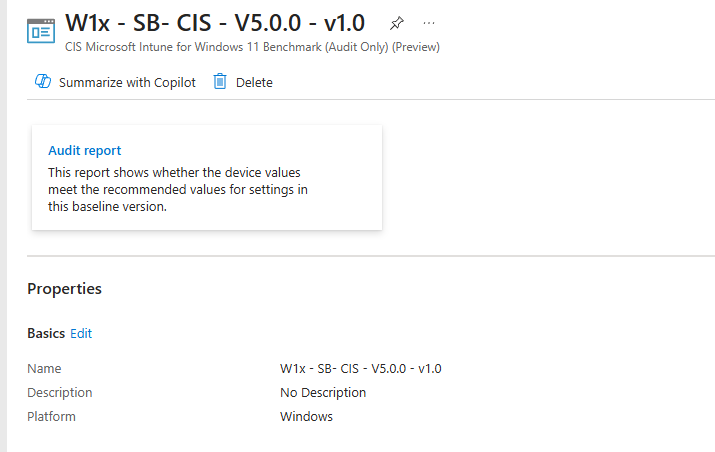
Because nothing is enforced, there’s nothing to conflict with. You can assign the audit next to your security baselines, Settings Catalog profiles and compliance policies without risk to the device. Start broad.
Reading the results
Expect the first results after 24 hours or longer.
Deployment and audit are two separate steps. The profile can show as successfully deployed while there’s no audit result yet. A successful deployment is not an audit result.
The audit results live in a different place than the usual baseline reports. Device and user check in status, Device assignment status and Per setting status tell you about delivery. They don’t tell you about the benchmark.
- Go to Endpoint security > Security baselines and select the CIS audit baseline.
- Select your profile.
- Open Audit report and generate it. If a report already exists, use Generate again to refresh it.
- Search for a setting. You see its name, its Reference Id, the CIS profile in the Severity column and the Success devices count. Use Columns to change what’s shown.
- Select the device count to see the result per device, with its audit status and last check in.
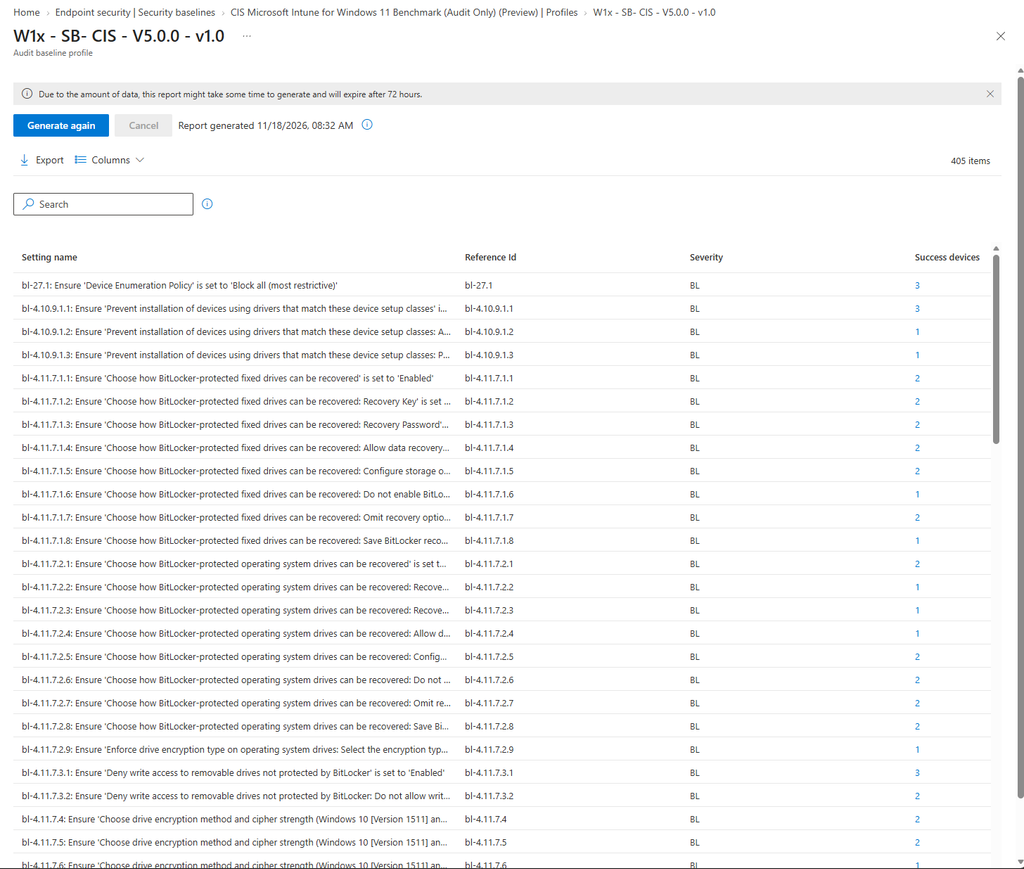
Figure 3. The Audit report of a CIS audit profile in my lab tenant. The Severity column shows the CIS profile, here BL for the BitLocker checks.
A generated report expires after 72 hours. Intune warns that generating it can take a while because of the amount of data. Generate it again when you come back to it later.
A result is either Pass or Fail.
An evaluation error is neither. It’s not a failed check, and it’s not a passed check. Don’t count errors or missing results either way.
The report shows pass or fail, not the value that is actually set on the device. If you need to know what is configured, you still need another source.
Results aren’t real time. Generating the report doesn’t mean every device has sent a fresh evaluation. Look at the report timestamp and the device check in before you act on a finding.
Exporting
Open the Audit report and select Export. You get a zip with one CSV, named IndustryBaselinePerSettingDeviceAuditSummary_<id>.csv.
The CSV has four columns:
| Column | Contains |
|---|---|
SettingName | Reference Id plus the CIS recommendation text |
StigRuleId | The Reference Id, for example l1-49.19 |
StigSeverity | The CIS profile: L1, L2 or BL |
NumberOfCompliantDevices | How many devices pass this check |
Despite the STIG column names, this is the CIS data. Filter on StigSeverity and you have your Level 1 view in seconds. That’s also the easiest way to build the exception register.
For automation, Intune reports can be exported through Microsoft Graph. Microsoft points to the general report export mechanism. There is no CIS specific Graph request or permission documented yet.
CIS and STIG audit side by side
| STIG audit baseline | CIS audit baseline | |
|---|---|---|
| Status | Generally available | Public preview |
| Source | DISA, mandatory for US DoD | CIS, community consensus, voluntary |
| Benchmark | Windows 11 STIG SCAP Benchmark V2R7 | CIS Microsoft Intune for Windows 11 v5.0.0 |
| Checks | 197 rules | 405 items in my tenant (404 documented): 296 L1, 80 L2, 29 BL |
| Scope | One standard, no profiles | Level 1, Level 2 and BitLocker combined |
| Platforms | Windows 10 and Windows 11 | Windows 11 |
| License | Advanced Analytics | Advanced Analytics |
Limitations
- Preview. Expect changes before general availability.
- One combined profile. You can’t audit only Level 1. Every Level 2 setting you chose not to apply shows up as a fail.
- No tailoring. You can’t exclude settings or change expected values.
- Windows 11 only. No Windows 10.
- Pass or fail only. The actual device value isn’t in the report.
- Errors aren’t results. Treat them separately.
- Not real time. Results follow the device inventory cycle. First results take 24 hours or more.
- Automated checks only, by nature. Manual recommendations in the benchmark still need their own process.
- Intune benchmark only. Results don’t map one to one onto the Windows 11 Enterprise benchmark.
Where this leaves you
The STIG audit was the first sign that Intune can evaluate a device against a full standard without touching it. CIS is the second, and for most organizations in Europe it’s the more relevant one. A DoD STIG rarely applies here. CIS comes up all the time.
The tool gives you the measurement. It doesn’t give you the answer. “CIS compliant” always needs a qualifier: which benchmark, which version, which profile, and which exceptions. Decide on Level 1 and the Level 2 settings you want, keep the exception register, and use the audit report to prove the rest.
In the STIG post I said I’d like an audit mode for every baseline. This doesn’t change my mind. It’s the same engine pointed at a second standard, and that is exactly the pattern I was hoping for.