
Most Intune discussions start with policies. Compliance rules, configuration profiles, security baselines, endpoint security settings. That is where people spend their time and that is where the attention goes. But almost every one of those controls depends on something much simpler underneath. A group. Intune uses Entra groups as the assignment target for policies, apps, and administrative permissions. That makes the group part of the security boundary, not just an object in a directory.
If someone deletes that group, empties it, or changes its membership, they are not touching the policy. They are breaking the connection between the policy and the device. The policy still exists in Intune. The device just stops receiving it. That failure is usually invisible. No alert, no warning. Devices drift out of scope and the security posture quietly degrades until someone notices the numbers look off.
That is the problem. This post is about how to fix it.
What restricted management administrative units (RMAU) actually are
The term “restrictive group” gets used loosely. It is not a separate Entra group type. The actual feature is restricted management administrative units in Microsoft Entra ID.
A restricted management administrative unit is a protected boundary in your tenant. Objects placed inside it cannot be modified, deleted, or have their ownership or membership changed by anyone who is not explicitly assigned a role at that administrative unit scope. The protection is on the Entra object, not on the policy.
Microsoft’s own documentation calls out exactly this scenario. One of the documented use cases is restricting management of sensitive security groups so that tenant scoped administrators who can normally modify groups can no longer decide who gets access. That maps directly to Intune assignment groups.
The default power balance in Entra is that a group is just another object for anyone with sufficient tenant wide permissions. Restricted management administrative units (RMAU) change that. Even Global Administrators and Privileged Role Administrators cannot modify protected objects unless they assign themselves a role scoped to that restricted administrative unit. That action is auditable. Broad permissions no longer translate silently into group control.
The diagram below maps this to a real tenant. Regular Entra groups sit outside any protected boundary. A tenant admin can reach them. The Intune assignment groups sit inside the restricted management administrative unit. The designated admin, assigned a role explicitly scoped to that boundary, can reach them. The tenant admin cannot.
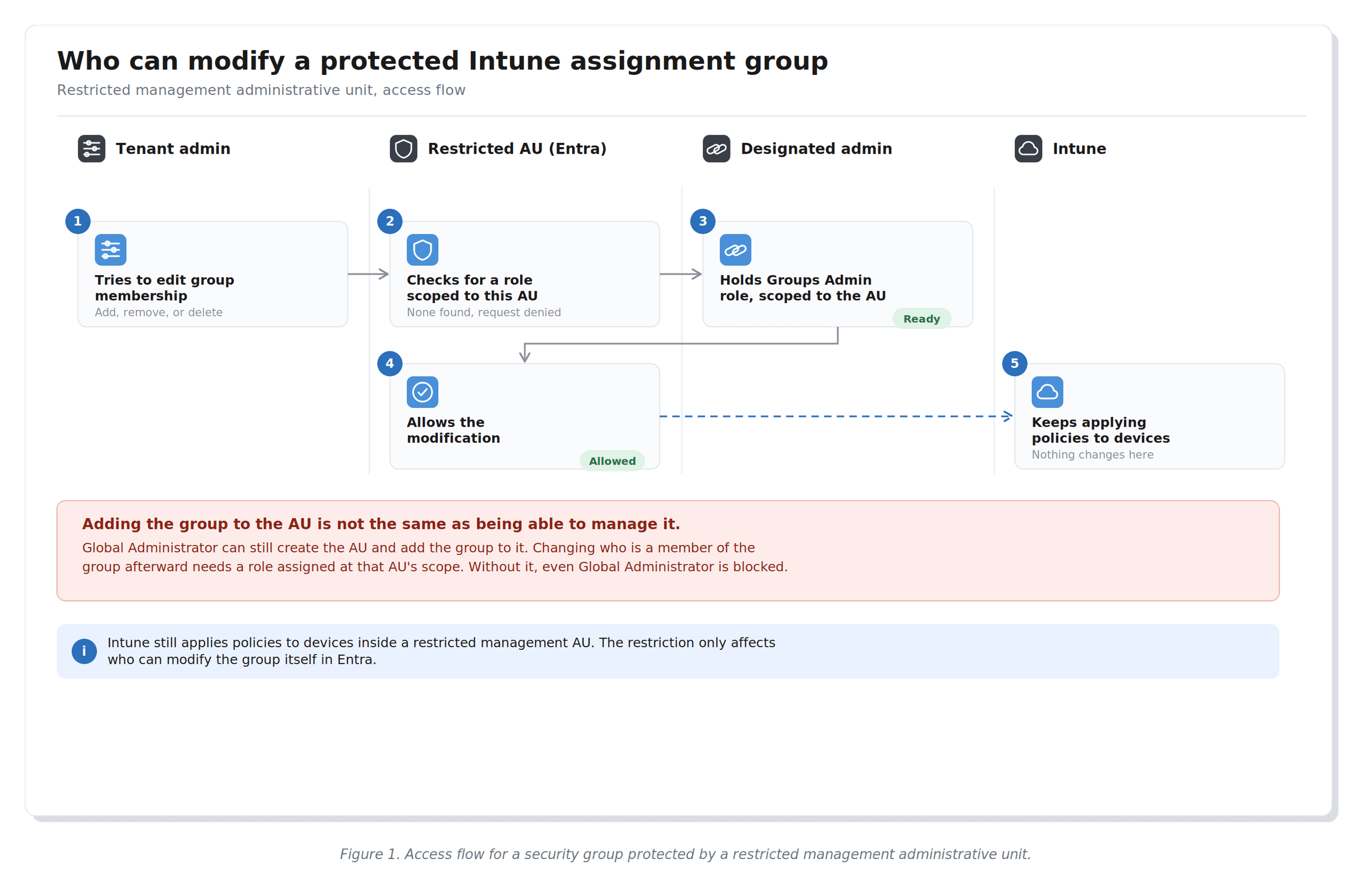
That wall is the point. A Global Administrator with full tenant permissions hits the same barrier as any other admin without an explicitly scoped role assignment. Assigning yourself to a role at the restricted administrative unit scope is auditable. Broad tenant permissions no longer translate silently into group control.
The groups inside still function as Intune assignment targets. Devices receive policies. Nothing about the policy application chain changes. The restriction is purely on the Entra management side: who can modify the group, change its membership, or delete it.
Why this matters for Intune specifically
A security baseline, compliance policy, or hardening profile is only as strong as its assignment target. You can invest significant time building the right controls. But if the group behind the assignment is treated like any other operational group, someone with broad admin rights can change it, empty it, or delete it and your controls stop applying.
That is not a hypothetical. It happens through rushed operational work, accidental changes, or permissions that are wider than anyone intended. Protecting the group does not make the policy stronger. It makes the connection between the policy and the device reliable.
Group ownership makes this worse in practice. Most people assume that ownership of a group is a trusted relationship. In default Entra behavior it is also a management backdoor. Anyone who is owner can modify membership. For a group that controls which devices receive your security baseline, that is a significant exposure.
What actually gets blocked
Microsoft documents this precisely. For objects inside a restricted management administrative unit, administrators without an explicit role at that scope cannot modify Entra properties, cannot delete the object, and cannot change owners or members.
Group ownership does not bypass this. Microsoft’s own troubleshooting documentation states it directly: as an owner of a protected group, you cannot manage it based on ownership alone. Managing a protected resource requires a role assigned at the restricted administrative unit scope of that resource. That removes one of the most common bypasses in sensitive group design.
Intune functionality is not affected. Intune can still apply policies to devices in a restricted management administrative unit, and the same applies to related Microsoft 365 operations: mailbox settings in Exchange, licensing and usage location, adding a group as a SharePoint site owner. None of that is blocked. Only the Entra level properties of the object itself are protected: its membership, its ownership, its existence.
There is one important nuance most write ups skip. Managing the restricted administrative unit as a container is different from managing the objects inside it. A Global Administrator or Privileged Role Administrator cannot touch the protected group directly, but they retain the ability to create or delete the RMAU itself, add or remove its members, and assign or remove roles scoped to it, including assigning themselves. That is how you recover access if your designated admin leaves the company. A Global Administrator reassigns the role. They still cannot open the group and edit its membership directly, but they can hand that right to someone else.
License requirements
Licensing follows the administrator, not the protected object. Every administrator who holds a role scoped to the restricted management administrative unit needs a Microsoft Entra ID P1 license.
Licensing follows the administrator, not the protected object. Every administrator who holds a role scoped to the restricted management administrative unit needs a Microsoft Entra ID P1 license. The users, groups, and devices sitting inside the RMAU as members can stay on Entra ID Free. There is no premium requirement on the protected side, only on whoever holds the management role.
There is also a tenant limit of 100 restricted management administrative units, and a single Entra resource can be a member of no more than 30 administrative units. For most organizations neither limit is a blocker, but it is worth knowing before you build a structure around this feature at scale.
How to set it up
Start with the design decision, not the technical steps. Not every group needs this treatment. The right candidates are the groups that carry real security weight. Compliance policies, security baselines, endpoint security settings, critical configuration profiles, sensitive application deployments. If deleting or changing that group would weaken device security or access control, it belongs here.
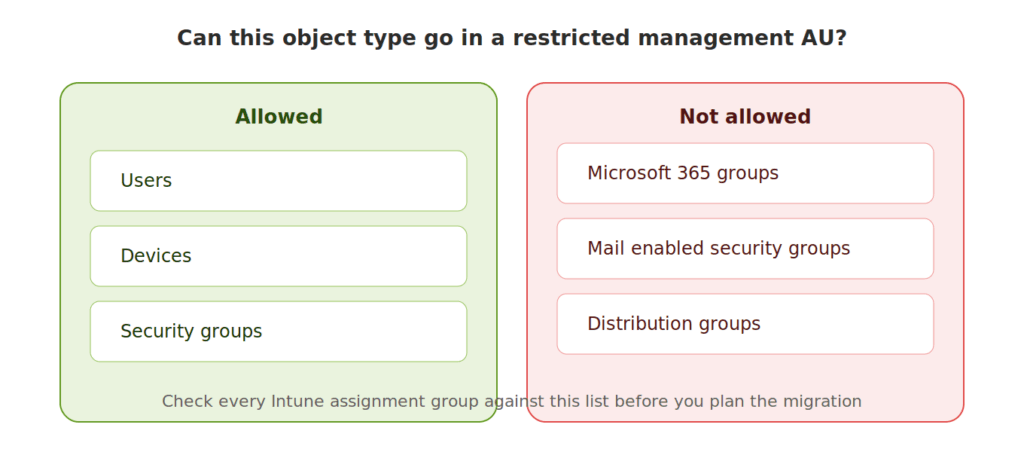
Before you touch anything, check what kind of group you are dealing with. Only users, devices, and security groups can be members of a restricted management administrative unit. Microsoft 365 groups, mail enabled security groups, and distribution groups cannot. If any of your Intune assignment groups are Microsoft 365 groups rather than plain security groups, this feature is not available to them at all.
Two different actions get confused here, and the setup wizard does not make the difference obvious. Creating the administrative unit and adding a group to it is one thing. Getting the right to actually manage the members of that group afterward is another. If you only do the first, you end up unable to add a single user to a group you just protected, even signed in as Global Administrator. That is not a mistake. It is the feature working as designed, just not explained anywhere in the wizard itself.
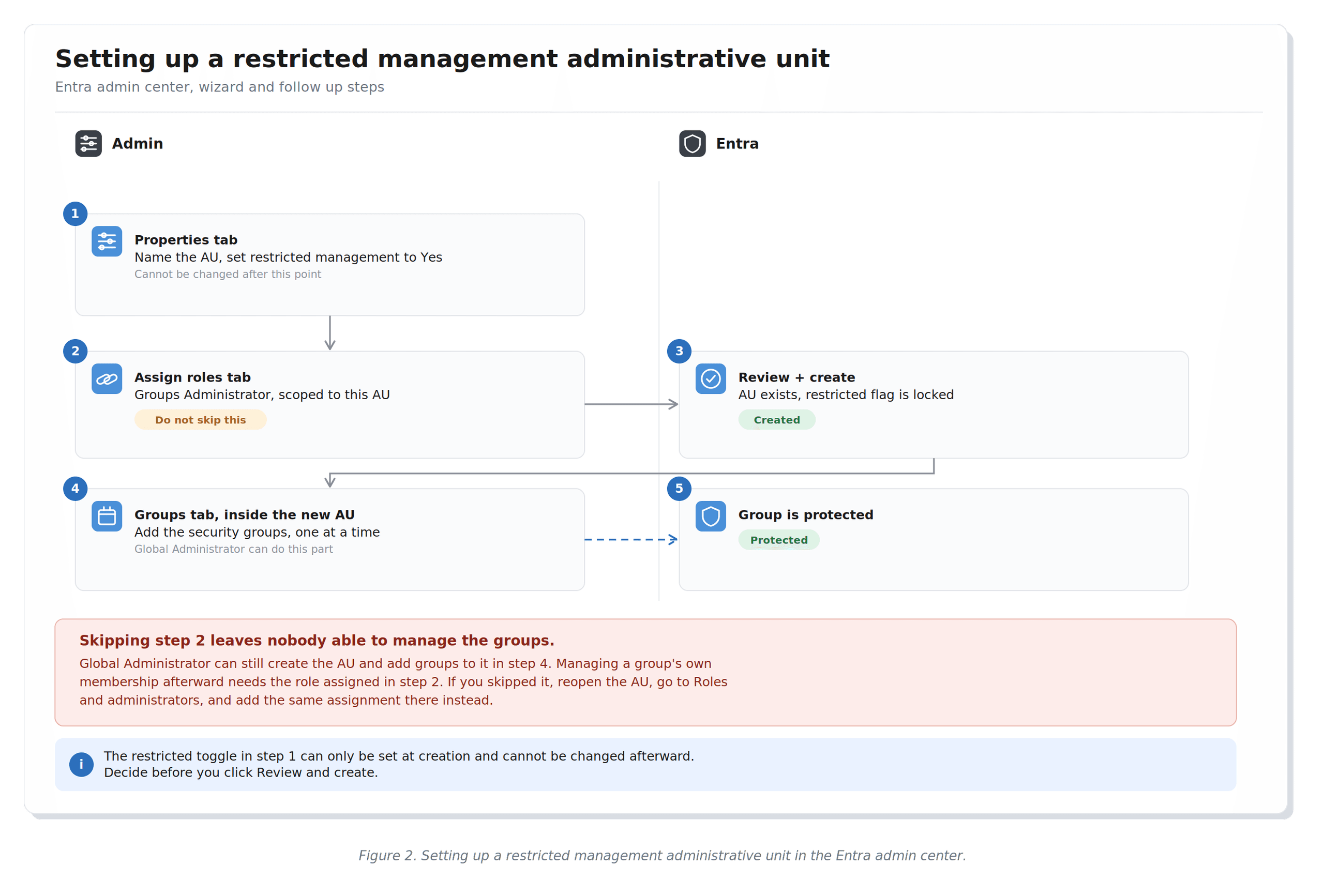
Step 1: create the administrative unit
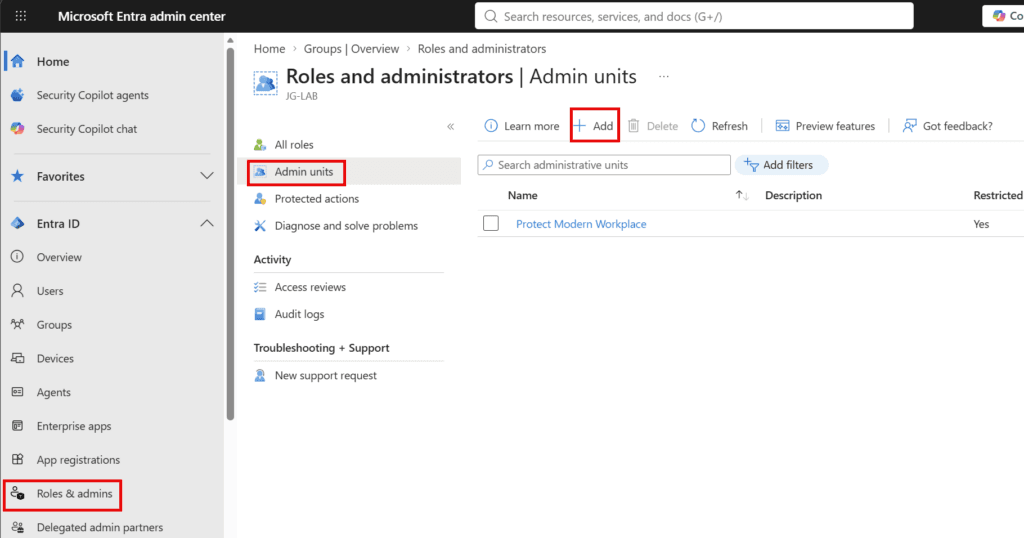
Sign in to the Entra admin center as a Global Administrator or Privileged Role Administrator. Go to Identity, then Roles and admins, then Admin units. Select Add.
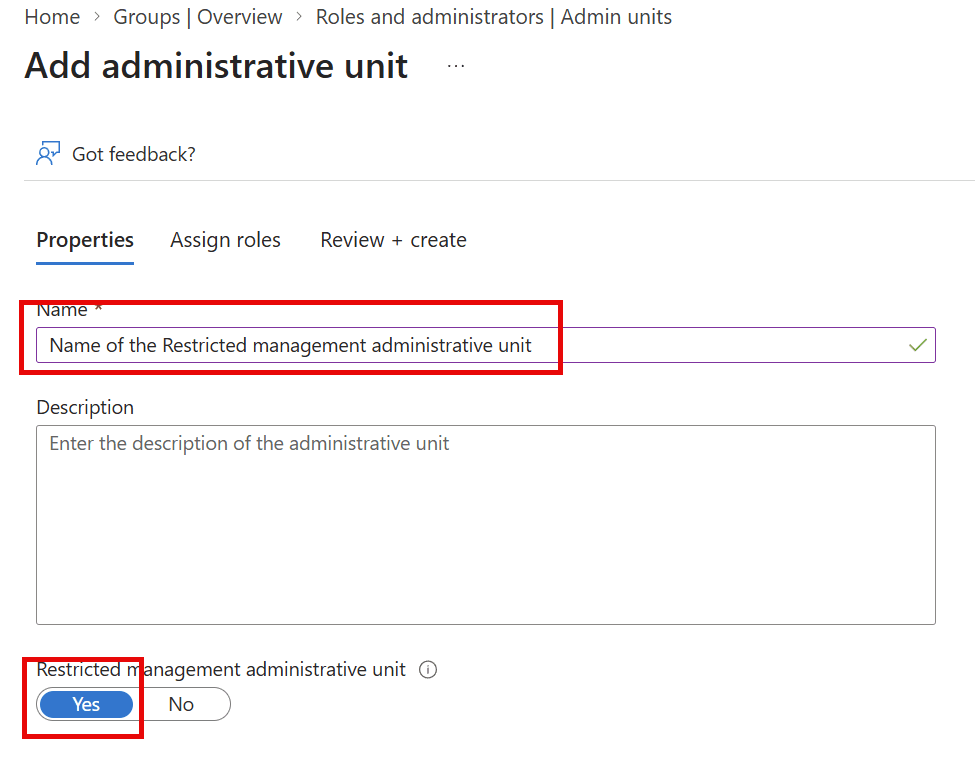
On the Properties tab, name the unit and set the toggle for restricted management administrative unit to Yes.
This is the point of no return. The restricted setting must be applied at creation and cannot be changed afterward. If you forget this step, you delete the RMAU and start over. There is no upgrade path from a regular administrative unit to a restricted one.
Step 2: assign roles, right here in the wizard
This is the tab most people click straight past, and it is the one that actually matters. Do not skip it.
Add a role assignment for Groups Administrator, scoped to this administrative unit, and assign it to yourself or to whoever will be managing these groups day to day. This has to happen now, or immediately after creation. Without it, nobody, including a Global Administrator, has the right to manage the membership of any group placed inside this RMAU.
If you already clicked through without doing this, nothing is broken. Open the administrative unit after creation, go to Roles and administrators, and add the same assignment there. It is the identical action, just done as a separate step instead of inside the wizard.
Step 3: review and create
Nothing new to configure here. Confirm what you set on the previous two tabs and create the RMAU.
Step 4: add the groups
The creation wizard does not include a step for this. Open the administrative unit you just created, go to Groups, and add your Intune assignment groups one at a time.
Adding a group to the RMAU is allowed for Global Administrator and Privileged Role Administrator regardless of any RMAU scoped role. This is managing the administrative unit itself, which stays available to those two tenant scoped roles. What comes next is where that stops being true.
Before you add a group, check its visibility setting. If a group is configured as public, users can join it themselves through self-service group membership, even while it sits inside the RMAU. That is a documented limitation that has not been fixed yet. Adding a public group to this boundary protects it from admin tampering but does nothing to stop someone adding themselves to it. Set the group to private first.
The part that actually trips people up
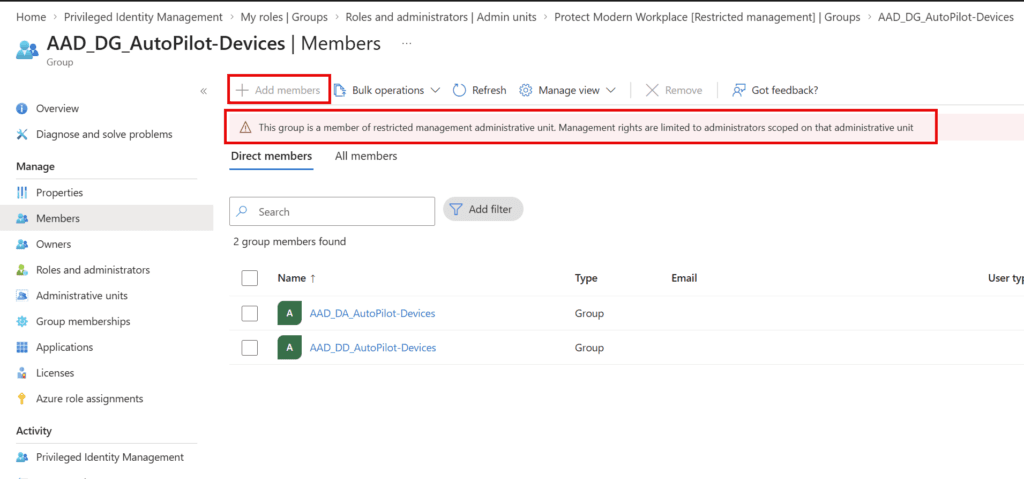
Adding a group to the RMAU protects the group. It does not give you the right to manage the group.
Once a security group sits inside a restricted management administrative unit, changing its membership, its owners, or deleting it requires a role assigned at that RMAU’s scope. Global Administrator does not carry that right automatically, even though Global Administrator was enough to create the RMAU and add the group to it in the first place.
So if you go straight from adding the group to trying to add a user to it, and you skipped step 2, you get blocked. Switch to the account holding the Groups Administrator role scoped to this RMAU, or go back and assign that role to your own account, then try again.
What to know before you use it
Placing objects in a restricted management administrative unit severely restricts who can make changes, and existing workflows can break. That warning is accurate. Test this on a small set of groups before rolling it out broadly.
If one of your protected groups happens to be role assignable, its membership becomes locked to tenant level administrators only. Neither Global Administrator nor Privileged Role Administrator can be assigned at RMAU scope, so a role assignable group placed in an RMAU cannot have its membership changed by anyone scoped to that RMAU. This is uncommon for pure Intune assignment groups, but worth checking before you migrate a group you are not fully sure about.
Applications are affected the same way administrators are. Applications cannot modify objects inside restricted management administrative units by default, and Graph application permissions do not apply there automatically. To let an application manage protected objects, you must assign a Microsoft Entra role to that application at the RMAU scope. If you have automation or governance tooling that touches these groups, account for that before you protect them.
Entra ID Governance features do not work inside restricted management administrative units. Groups inside them cannot be managed through Privileged Identity Management, Entitlement Management, Lifecycle Workflows, or Access Reviews. Design your administration model around that before you start.
Deleting an RMAU does not lift protections instantly. It can take up to thirty minutes for the former members to lose the restriction after the RMAU itself is gone.
Everything here is logged. Creating the RMAU logs an event confirming the restricted flag was set. Adding or removing members logs separately. Role assignment changes at the RMAU scope log under their own category. If you need to prove this control is in place during an audit, this is the trail to point to.
Why this is worth doing
If a group determines which devices receive your security controls, that group should not be one accidental change away from breaking those controls. Broad tenant permissions should not be enough to modify it. Ownership should not be enough either.
Restricted management administrative units let you take the groups that actually matter and put them behind a stricter boundary. That boundary is specific, auditable, and deliberate. It replaces implicit trust in admin role scope with explicit assignment.
The Intune policy does not protect the device on its own. The assignment group is part of that protection too. Once you see it that way, protecting those groups stops feeling like extra effort. It becomes part of the same security work you were already doing.