
A kiosk that restarts in the middle of opening hours. A shared device on the factory floor that starts installing a feature update while someone needs it. A device next to a production line that is suddenly busy with a driver update.
Anyone who has managed these devices with Intune knows the problem. The tools we had were all built around the user. Active hours, scheduled install times, deadlines and grace periods. They push updates away from the moments a user is working. None of them say: this is the only moment you are allowed to update.
Configuration Manager admins have had that for years. A ConfigMgr maintenance window does exactly that. In a cloud managed world, there was no real equivalent. That has changed. Windows 11 now has maintenance windows built in, and Intune lets you configure them.
So Intune now lets you decide when Windows Update is allowed to act on a device. Not when it should avoid acting. When it is allowed to.
That difference sounds small. It isn’t.
In this post I go through what a maintenance window covers, how to configure it in Intune, how it works together with deferrals and deadlines, and the traps you want to know about before you assign it.
- Active hours were never a schedule
- What it governs and what it doesn’t
- Requirements
- What happens under the hood with maintenance windows
- Choose the update action first
- Create the policy
- Schedule settings maintenance windows
- Example: kiosks on Sunday night
- What can still act outside the maintenance window
- Windows or deadlines, not both
- Deferrals and the window
- Traps
- Monitoring
- Troubleshooting
- Where I’d use it
Active hours were never a schedule
Active hours tell Windows when the user is probably working. Windows tries to stay out of the way during that period. Outside of it, Windows does what it wants.
That is a defensive setting. It discourages disruption, it doesn’t define a servicing slot.
For a normal user laptop that is fine. For a kiosk, a shared device on a factory floor or a frontline device that has to be available during opening hours, it isn’t. Those devices need a fixed moment where updates happen, and no update activity outside of it.
That is what a maintenance window does. It restricts when automatic Windows Update actions may begin to a period you schedule.
If you come from Configuration Manager, the idea is the same as a ConfigMgr maintenance window. The difference is that this one is native to Windows 11 and you configure it from Intune.
What it governs and what it doesn’t
A maintenance window covers Windows Update content. Quality updates, feature updates, Hotpatch updates, .NET updates, Microsoft Defender updates, drivers and firmware.
It does not decide which updates a device gets. Approval, deferrals, deadlines and driver approvals stay in the policies you already have. The window only controls timing.
It also doesn’t lock out the user. If the Windows experience and your other policies allow it, a user can still start an update outside the window. The window only controls automatic update actions.
This first release is about updates only. App installs are not part of it.
Requirements
The underlying settings require Windows 11, version 24H2 with KB5077181 (build 26100.7840) or later.
Devices must be enrolled in Intune. Supported editions according to the CSP are Pro, Enterprise, Education and IoT Enterprise / IoT Enterprise LTSC. The settings are device scoped, not user scoped.
The Intune documentation carries no preview label, so this is GA. Licensing is not mentioned in the documentation.
What happens under the hood with maintenance windows
My good friend Rudy Ooms dug into this one long before the Intune UI was there. His post is worth reading in full: Intune Maintenance Windows for OS, Driver, and Update Servicing.
The short version of what he found.
The policy was already in Windows before Intune exposed it. It showed up in WindowsUpdate.admx, in a MOF file for the MDM WMI bridge and in the Update Policy CSP. Because the CSP was there, Rudy configured the settings with a custom OMA-URI profile and the device accepted them. He tested this on an Insider build and again on Windows 11 25H2 (build 26200.7781) with the February 2026 update.
The work is done by MoUsoCoreWorker.exe. When a scan runs, scheduled or because a user clicks Check for updates, it evaluates the maintenance window configuration. Based on the repeat type it calculates the next start time, end time and duration. If the current time falls inside a valid window, update work goes ahead. If not, it waits for the next one.
Rudy also found that the feature sits behind a feature flag in Windows and uses internal enterprise policy IDs. Those internals are not documented by Microsoft, so treat them as his findings, not as a contract.
The part that matters for us: this is a real scheduling mechanism in the update stack. Not a UX hint like active hours.
The Intune policy writes to the same Update Policy CSP settings Rudy used:
./Device/Vendor/MSFT/Policy/Config/Update/MaintenanceWindowEnabled
./Device/Vendor/MSFT/Policy/Config/Update/MaintenanceWindowUpdateActions
./Device/Vendor/MSFT/Policy/Config/Update/MaintenanceWindowRepeatScheduleOption
./Device/Vendor/MSFT/Policy/Config/Update/MaintenanceWindowStartDate
./Device/Vendor/MSFT/Policy/Config/Update/MaintenanceWindowStartTime
./Device/Vendor/MSFT/Policy/Config/Update/MaintenanceWindowDurationHours
./Device/Vendor/MSFT/Policy/Config/Update/MaintenanceWindowWeekly<Day>
./Device/Vendor/MSFT/Policy/Config/Update/MaintenanceWindowMonthlySchedule
./Device/Vendor/MSFT/Policy/Config/Update/MaintenanceWindowMonthlyMonthBasedDayOfMonth
./Device/Vendor/MSFT/Policy/Config/Update/MaintenanceWindowMonthlyWeekBasedOccurrenceInMonth
./Device/Vendor/MSFT/Policy/Config/Update/MaintenanceWindowMonthlyWeekBasedDayOfTheWeek
That is also why the per setting status in Intune shows more entries than you configured. Every weekday is its own setting on the device.
Choose the update action first
Before you pick a schedule, decide what the window should control. This is the setting that decides how strict the window really is.
| Update action | Only starts inside the window | Can still happen outside the window |
|---|---|---|
| Download, install and restart | Download, install, update restart | Nothing automatic, unless a higher priority event applies |
| Install and restart | Install, update restart | Download |
| Restart only | Update restart | Download and install |
Actions you don’t select keep following your other Windows Update policies.
Restart only is the one people get wrong. It does not stop installs during the day. It only moves the restart. That can actually be the smart choice: the device downloads and installs ahead of time, so the window only has to cover the restart.
Install and restart is the middle ground. Downloads happen whenever, installs and restarts wait for the window. That is the example Microsoft uses for kiosks.
Download, install and restart is the strictest. Use it when bandwidth or performance during the day really matters.
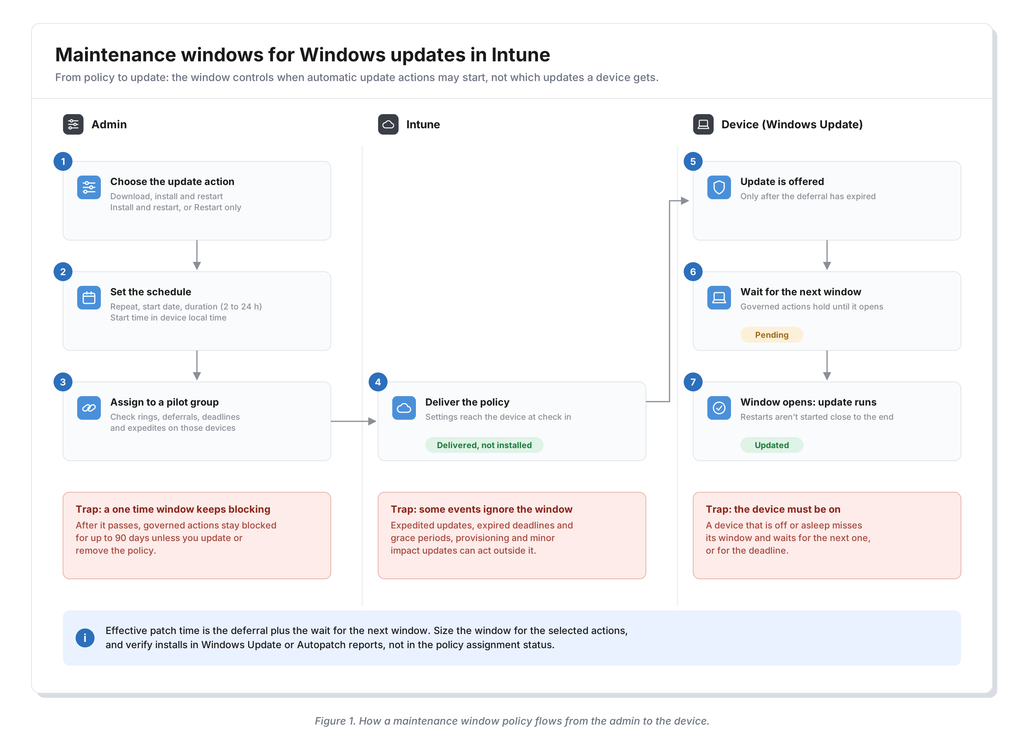
Figure 1. How a maintenance windows policy flows from the admin to the device.
Create the policy
The policy has its own node in the admin center.
Go to Devices > Manage devices > Maintenance windows > Create policy.
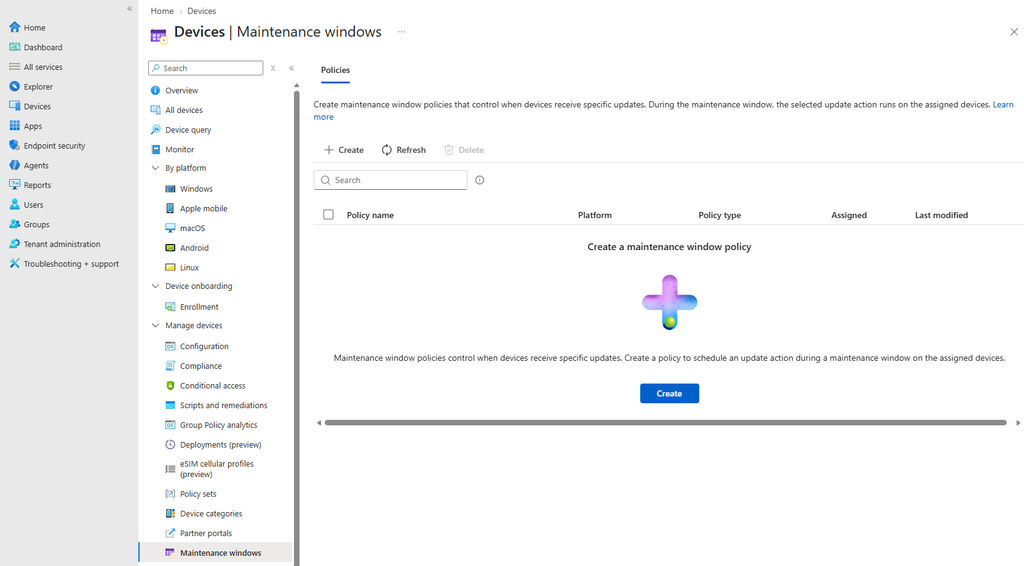
On Basics, give it a name that tells you the schedule. Something like Weekly kiosk maintenance.
On Configuration settings, expand Maintenance Windows and set:
- Workload type: Updates
- Enable Maintenance windows: On
- Update action: one of the three options above
- Start Date
- Start Time
- Duration in hours
- Repeat Schedule
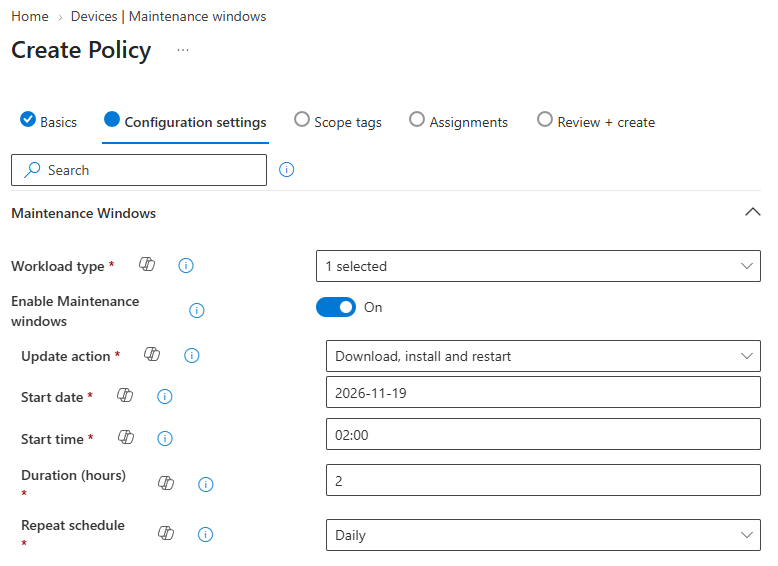
Add scope tags, assign to a group and create the policy.
Start with a small group of representative devices. Check the update rings, deferrals, deadlines and expedite policies already on those devices before you assign it. The window works together with all of them.
Schedule settings maintenance windows
| Setting | Rules |
|---|---|
| Start date | YYYY-MM-DD, required in Intune. Windows only honors it for a window that doesn’t repeat. A repeating window starts on the first date that matches the schedule. |
| Start time | HH:MM, in device local time |
| Duration (hours) | 2 to 24 |
| Time zone | There is no setting. Every device uses its own local time. |
The repeat options:
- None: a single window on the start date.
- Daily: every day, nothing else to set.
- Weekly: pick one or more days.
- Monthly: either a day of the month (1 to 28) or a week in the month (First, Second, Third, Fourth, Last) plus a day. Second Tuesday or last Sunday, for example.
Windows itself also supports a monthly window on the last day of the month. The Intune documentation doesn’t list that option.
The time zone point needs attention if your devices are spread over regions. A start time of 23:00 means 23:00 on every device, in its own time zone. There is no single global moment. If you need regional control, you need a policy per region and groups that match.
Example: kiosks on Sunday night
Kiosks may download during the day, but must install and restart at night.
| Setting | Value |
|---|---|
| Workload type | Updates |
| Enable Maintenance windows | On |
| Update action | Install and restart |
| Repeat schedule | Weekly |
| Weekly day selection | Sunday |
| Duration (hours) | 4 |
| Start time | 23:00 |
The window runs every Sunday from 23:00 to Monday 03:00, local time on each device. Downloads can happen outside of it. The start date is still required in Intune, but Windows doesn’t use it for a repeating window. It uses the weekday and start time, and the window applies as soon as the device has the policy.
What can still act outside the maintenance window
The window is not absolute. These can still trigger update actions outside of it:
- Expedited quality updates. An expedite takes priority.
- Expired deadlines and grace periods. Once those are past, Windows can enforce the install and the restart outside the window.
- Device provisioning. Required update or setup actions during provisioning take priority.
- Education cart servicing policy, when configured.
- Minor impact updates, as classified by Windows.
The expedite and deadline items are the ones to plan for. Deadlines get their own section below.
Active hours and other scheduling settings do not give the device an alternative moment for actions the window governs. The window is the only slot for those.
Windows or deadlines, not both
Microsoft’s guidance is to configure either maintenance windows or update deadlines on a device. Not both.
Combining them doesn’t break anything. It just makes it hard to predict when an update action will happen.
For updates the window governs, the window wins over the other rollout settings. Deadline settings and Configure Automatic Updates are largely ignored in favor of the window. There is one exception: an expired deadline. That is the only update setting that forces actions outside the window.
The effective deadline is whichever comes later: the moment the device discovered the update plus the deadline days, or the moment the restart became pending plus the grace period.
Take a weekly window on Saturday with Download, install and restart. Two examples from the Windows documentation:
- Deadline of 3 days. The update is released on Patch Tuesday. The effective deadline expires on Friday. The device installs and restarts on Friday, before the Saturday window.
- Deadline of 7 days. The effective deadline expires the next Tuesday. The Saturday window comes first, so the update runs inside the window. When the deadline passes on Tuesday, nothing happens.
So if your update rings already set deadlines for these devices, the window will not save you from a short one. Either remove the deadline for devices that get a window, or make sure the effective deadline can never expire before the next window.
Deferrals and the window
Deferrals decide when an update is offered. The window decides when it may be acted on. They stack.
Take a seven day quality update deferral and a Saturday window. Patch Tuesday lands. On the first Saturday the update is still deferred, so it isn’t available in that window. It gets picked up the Saturday after.
So your effective patch time is deferral plus the wait for the next window. Do that math before you promise anyone a patch timeline.
Traps
A window doesn’t guarantee completion. An action that starts inside the window can run past the end. Windows tries to limit this by not starting actions close to the end. Per the Windows documentation, if the window ends at 06:00, Windows only attempts the restart before 05:30. So the usable part of your window is shorter than the duration you set. Size it for that.
A one time window keeps blocking after it passes. This one is in the Windows documentation, not in the Intune article. A one time window can be set up to 90 days in the future. Once it passes and you don’t update or remove the policy, the device won’t perform the governed update actions for another 90 days. Only when the window is more than 90 days in the past does Windows ignore it and act as if there is no window. Remove or update one time windows as soon as they are done.
Restart only means restart only. If you see installs during the day with Restart only, that is expected behavior.
The device must be on. A device that is off or asleep during its window misses it. Then it waits for the next window, or for the deadline.
Assignment status is not update status. Succeeded in the policy report means the settings reached the device. It doesn’t mean an update installed in the window.
Monitoring
Open the policy under Devices > Manage devices > Maintenance windows. You get check in status, assignment status and per setting status. Look for errors, conflicts and devices that haven’t received the policy.
To prove updates actually ran in the window, use your Windows Update or Windows Autopatch reports. Compare the install and restart timestamps against the schedule, in the device’s local time.
Troubleshooting
Activity outside the window. Check in this order:
- Is the action covered by the update action you picked?
- Did it start inside the window and run past the end?
- Did a user start it?
- Was there an expedite, an expired deadline or another higher priority event?
- Are you comparing against the device’s local time?
Nothing installs or the device doesn’t restart.
- The policy reached the device.
- An applicable update is available and no longer deferred.
- A restart is actually required and download and install are finished.
- The device was on during the window.
- The schedule matches the device’s local time.
- A one time window hasn’t already passed.
- The window is long enough for the selected actions.
A repeating window never runs.
- Weekly: at least one day is selected.
- Monthly by day: the day is between 1 and 28.
- Monthly by week: both the week and the weekday are set.
Where I’d use it
Kiosks, shared devices, frontline devices and anything on a production floor. Devices where a reboot at the wrong moment costs money.
Microsoft is clear about the target as well: devices without users, like kiosks, and critical devices, like medical and manufacturing equipment.
The feature has no real notification or scheduling controls for the user. For devices with regular users, Microsoft points to the default Windows Update experience or to compliance deadlines. For normal user laptops, update rings with sensible deadlines and active hours still do the job.